
























ShipStation Connect for faster, cleaner warehouse printing
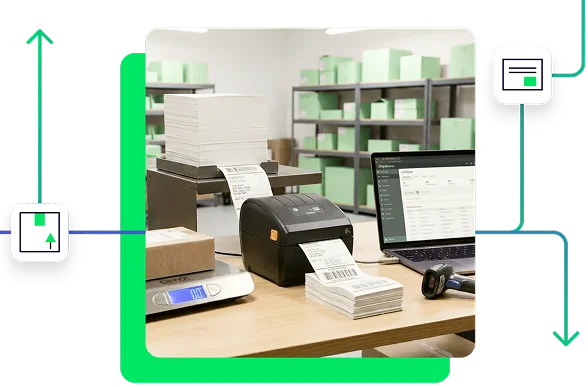
ShipStation Connect keeps printing simple when your order volume climbs. With Shipstation Connect, your labels, packing slips, and other docs can print straight from ShipStation to the right workstation without downloading files. Cut clicks. Cut mix-ups. Keep every packing station moving so you ship on time, every day.
Connected to the platforms that power your business
Streamline warehouse printing workflows
Keep printing right in the flow of fulfillment. Route documents to the right device, apply smart defaults, and keep your team moving in one streamlined workflow. It’s warehouse shipping automation built for real operations—without the steep learning curve.
ShipStation Connect results — faster, cleaner warehouse printing
We’ve helped 130,000+ businesses print labels locally and speed up warehouse workflows with ShipStation Connect. Let us make printing the easiest part of your fulfillment, too.
How ShipStation Connect works
What is ShipStation Connect
ShipStation Connect is the lightweight desktop app that passes print jobs from your ShipStation account to printers connected to a printer workstation. Think of it as the missing link that lets you connect shipping software to local printers without extra steps. You don’t have to use it to print from ShipStation, but it’s often the easiest way to keep documents moving when volume rises and your team is working in batches.
Order #SO-10482
Bacon Lover · USPS Priority Mail
Print Label + Packing SlipShipStation Connect
ConnectedDesktop app on this workstation
Zebra ZD421 · Label
4″ x 6″
Office Laser Printer · Packing Slip
8.5″ x 11″
Zebra ZD421
Thermal label printer
USPS PRIORITY MAIL
BACON LOVER
AUSTIN TX 78701
9400SAMPLE0000000004
Office Laser Printer
Desktop printer
PACKING SLIP
Order #SO-10482
3 items
ShipStation Connect workstation configuration
Set up your printer workstation once, then run fulfillment with less friction. Install ShipStation Connect on the computer your printers are attached to—typically via USB. From there, you can share printers and USB scales with other users on your account or disable devices you don’t want selected by mistake. You can also assign custom device names in ShipStation, separate from your operating system names. Clear names help your team move faster.
ShipStation Connect
Get Connected to your devices!
Zebra ZD421
Thermal Label Printer · 4″ x 6″
Connecting…ConnectedOffice Laser Printer
8.5″ x 11″
Connecting…ConnectedUSB Shipping Scale
2.38 lb
Connecting…ConnectedAccess your devices from any computer, anywhere.
Printing Setup
Print To · saved for this machine
Document Type
Print To
Label
4″ x 6″ (w/ Packing Slip)
Always Prompt
Zebra ZD421
Packing Slip
Prints with the label
Always Prompt
Included w/Labels
End Of Day Form
8.5″ x 11″
Always Prompt
Office Laser Printer
Customs Form
8.5″ x 11″
Always Prompt
Office Laser Printer
ShipStation Connect label printing setup
Dial in your ShipStation Connect printing setup so printing becomes automatic—without daily second-guessing. Assign a default printer for each document type, like labels or packing slips, and ShipStation can print without prompting your team every time. Pair that with document options such as label format and print sequence, and you get a printing workflow built for real warehouse speed. It’s a simple step toward fulfillment automation—no IT project required.
Testimonials
Hear From our Customers
How Shipping Automation Helps Meat Church Handle 2,000 Orders a Day at Peak Season
How Two Hives Honey Saves 10 Hours a Week with ShipStation
Connect local printers to ShipStation
Need to connect local printers to ShipStation for a busy pack line? Start with the basics: install the printer drivers in Windows or macOS and confirm the printer works from that computer before routing jobs through Connect. For best results, use USB-connected printers on the printer workstation. Some wireless or network printer setups may not be supported for Connect printing, and certain models may require a different print method. On macOS, CUPS settings can also affect printer preferences like paper size and print speed.
Printing shipping labels with ShipStation Connect
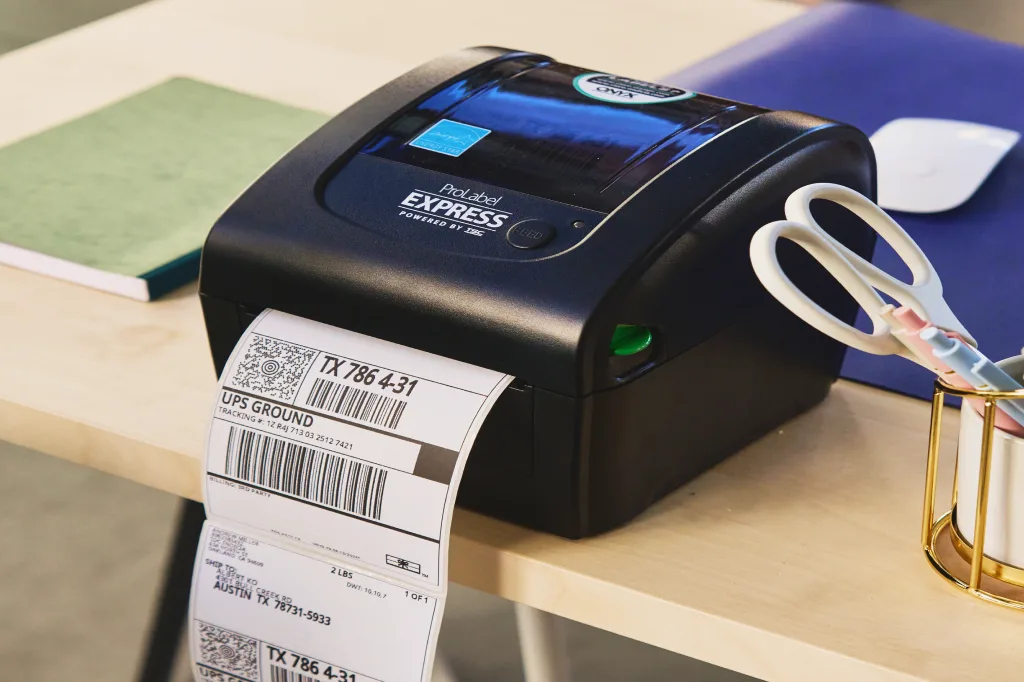
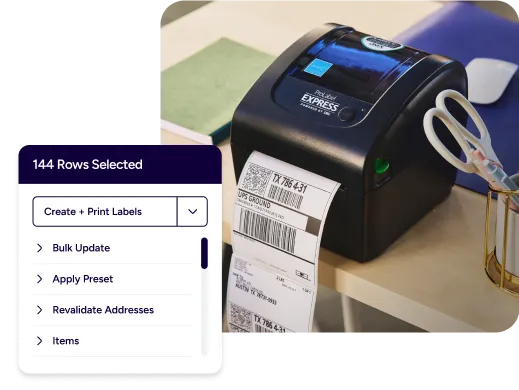
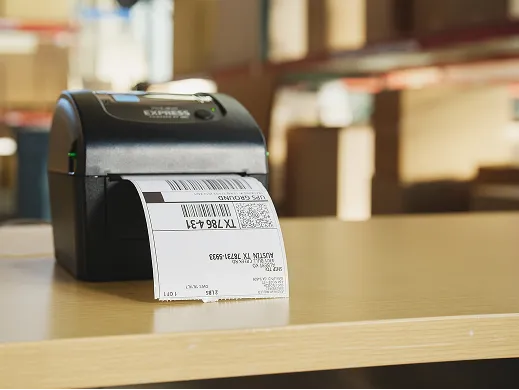
Printing shipping labels with ShipStation Connect is built for daily batching. Create labels in ShipStation, then send them straight to your thermal printer without downloading PDFs. Use ShipStation automation rules to apply carriers, services, packages, and presets, so label creation stays consistent. Add batch label printing and you’ll improve shipping throughput with automation. ShipStation also tracks print status with Smart Document Tracking, so you can see what’s printed per shipment and cut reprint chaos.

144 Rows Selected
ShipStation Connect packing slip printing
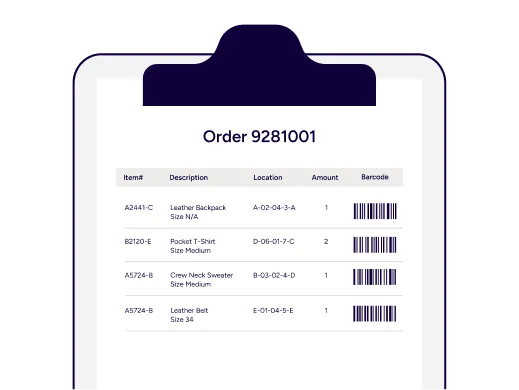
ShipStation Connect packing slip printing keeps the box contents and the paperwork in sync. Print packing slips to a desktop printer while labels go to a thermal printer, all from the same ShipStation screen. You can even choose label formats that place a label and packing slip on the same sheet when it fits your process. This makes it easier to automate printing of packing slips and labels, improve packing station efficiency, and keep the line moving when returns, exchanges, or split shipments add complexity.
RELATED CONTENT
Helpful Shipping Resources
Browse additional articles, guides, and insights related to shipping and fulfillment. These resources provide practical advice and best practices to support your day-to-day operations.
Try us free
What you can look forward to in your 30-day free trial:
Get instant access to all of our features
Connect to over 400 integrations
See how much our rates can save you on shipping
Create your ShipStation account
By clicking 'Get Started', you agree to our Terms & Privacy Policy and Carriers' Terms .