Back
Back























































 Shipping Basics


Every package you ship starts with a label, and if you’re printing them one at a time, that small step quietly steals hours from your week. For growing ecommerce businesses, label printing isn’t just a task to check off; it’s a bottleneck hiding in plain sight.
Whether you’re fulfilling 50 orders a day or pushing through a post-holiday surge, the speed at which you can print labels and get packages out the door directly affects your delivery times, your team’s productivity, and your customers’ experience.
Bulk label printing changes that equation entirely. Instead of clicking through each order, copying addresses, and buying postage one shipment at a time, you batch the whole thing. It sounds simple, but the operational impact is real: fewer errors from manual entry, faster pack times, and a shipping workflow that can actually keep pace with your sales.
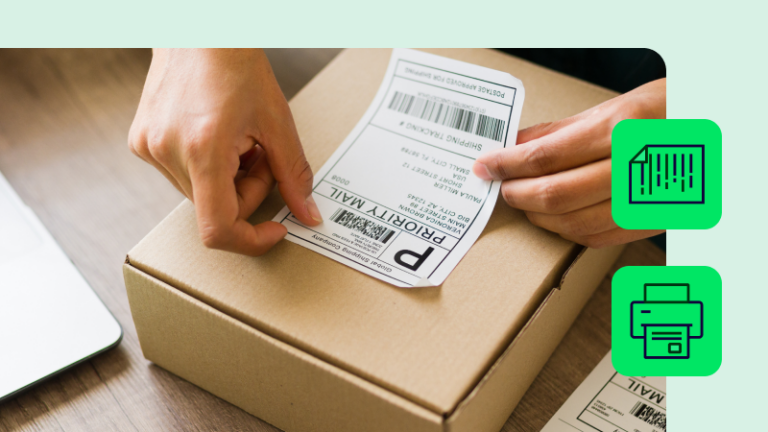
To print shipping labels in bulk quickly, pull your orders into a single queue, batch them, and print to a 4 x 6 thermal printer. When you need to print shipping labels in bulk fast, the real win is eliminating copy-paste and repeated clicks. Below, we’ll show you how to create a bulk label workflow, choose the right setup, and keep high-volume shipping moving.
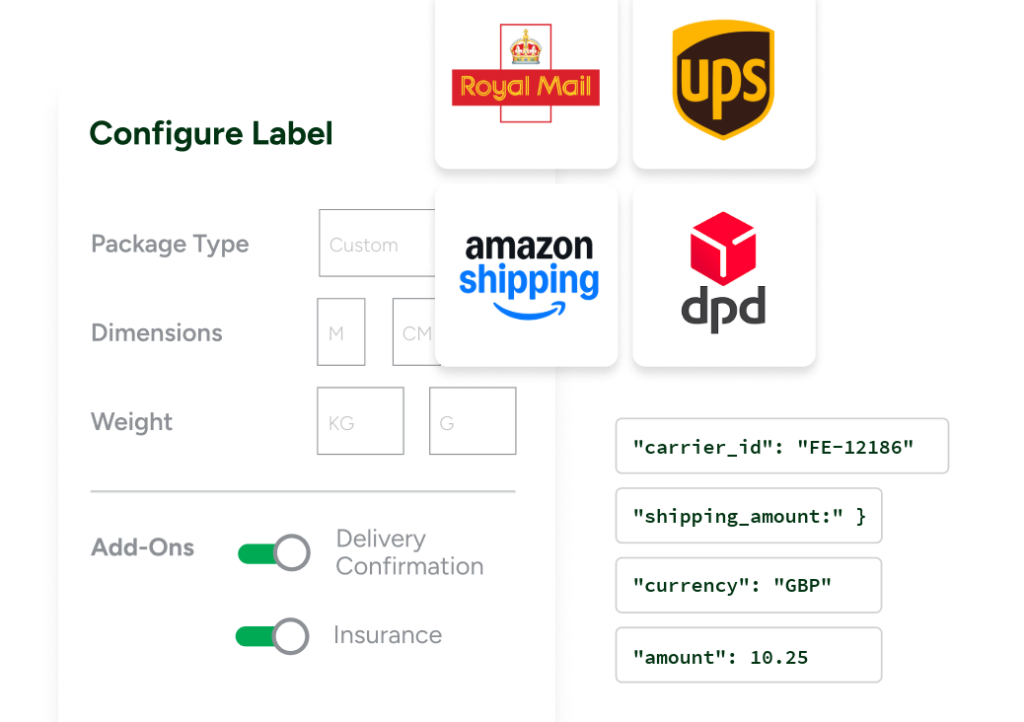
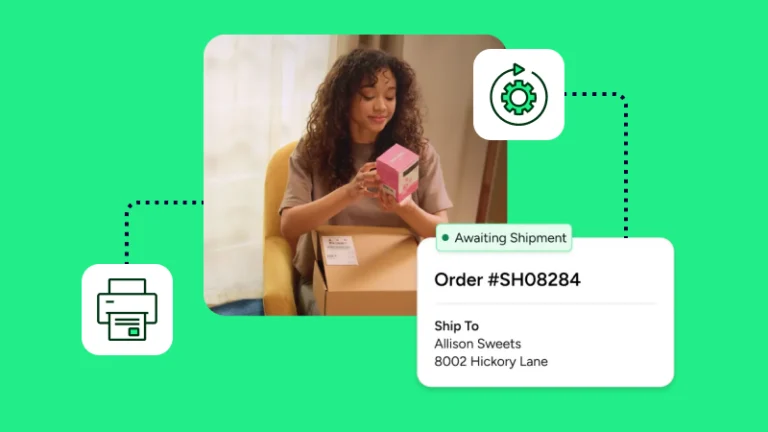
The fastest way is simple: connect your stores, import all orders, apply saved shipping details, and print labels in a single batch. With ShipStation, you can pull orders from Shopify, Amazon, eBay, Etsy, and more into one screen, compare UPS®, USPS®, FedEx®, and DHL Express rates, and print up to 200 labels in one click.
Use this basic flow:
That cuts manual work significantly. Instead of opening each order, copying customer information, and buying labels one by one, you handle many items at once. For a busy shop, that’s the difference between a smooth shipping day and a bottleneck at the pack table.
A thermal printer with 4 x 6 roll labels is usually the best setup for speed. It gives you clean, high-quality labels without ink or toner, and it skips the extra step of cutting the sheet
There are still other options. Some teams print labels on a standard sheet printer when order counts remain low. Others move to roll labels once volume grows. ShipStation supports both, so you can choose the format that fits your needs and pace.
A few practical tips help:
You create labels faster when every order lands in one place. ShipStation connects you to 100+ selling channels and ecommerce platforms, so you don’t have to jump from tab to tab or re-enter the same information for each shipment. Your Shopify, Amazon, WooCommerce, Walmart, and other orders can all sit in one queue.
That gives you better control over each batch. You can filter by channel, tag orders on import, and work through spikes without splitting your team across different tools. If you run more than one shop or manage marketplace and webstore sales together, that shared queue keeps every order visible.
It also helps with carrier choice. You can compare rate options per shipment, use your own carrier accounts, or mix those with ours. Many merchants do both. That means you don’t have to give up your existing setup to print labels faster.
Automation is how you maintain high speed as volume grows. Instead of editing each order by hand, you set rules once and let the right service, package, or tag apply automatically. That’s how you create a repeatable label-printing workflow without hiring more people just to manage routine steps.
With ShipStation, you can:
Think about the small, repetitive tasks that consume more time than they should: choosing package type, selecting the same service level, adding the same note, and copying the same settings. Rules remove that work. For high-volume teams, even one fewer click per order adds up quickly over a full day of shipping labels.
The onboarding process set up all the automation rules right from the start, including shortcut keys, and the process became super easy.
Yes. Speed doesn’t mean plain or generic. You can keep custom labels, branded inserts, or packing slip design templates without slowing your workflow, as long as you save them before rush hour starts. The key is to build repeatable settings, not to redesign documents in the middle of fulfillment.
ShipStation also helps you carry your brand past the printed label. You can customize tracking pages with your logo and brand colors and send shipment updates that feel like they came from your store, not only the carrier. That helps you control the post-purchase experience while your team keeps moving.
If you sell personalized products or handle detailed order data, this matters even more. The goal is simple: keep customer-facing details polished while the warehouse moves fast.
Most delays come from bad order data, old habits, or weak station setup. Wrong address details, missing package information, or teams working from an outdated browser can turn a fast batch into a slow one.
A few fixes make a big difference:
There’s one more thing to watch. If you print labels in advance, you can set the ship date during label creation or on the batch summary screen. Once a label is created, that ship date can’t be changed. If it needs a new date, you’ll need to void the old label and create a new one.
Yes. When your team isn’t at the main station, you can still create and print labels from ShipStation’s mobile app. That’s useful at pop-up events, trade shows, back stock rooms, or anywhere a full desk setup doesn’t make sense.
The app gives you a few print options. You can print through ShipStation Connect, send a PDF by email, or preview and download the label. If your printer is already set up through ShipStation Connect, creating labels on the go becomes much easier when the floor gets busy.
This won’t replace your main bulk workflow. But it does give you a fast backup when you need one more label out the door.
If you want to print shipping labels in bulk fast, focus on three things: a single order queue, fewer manual steps, and the right printer setup. ShipStation helps you connect stores, compare rates, create labels in batches, and keep orders moving without the usual back-and-forth. Start a free trial and see how much faster you can ship.