Back
Back


































 Shipping & Fulfillment


Automation rules turn a repetitive shipping decision into something you set once and never touch again. At its core, automation removes the small, recurring choices that eat up time without adding equal value, allowing a system to apply the same logic every time instead of a person doing it by hand. The best automations reduce the inconsistency that creeps in when decisions are made manually, order after order, hour after hour. Done well, automation becomes invisible: the right thing happens by default, and the only time you notice it is when you’re deciding whether the rule still fits how the business runs.
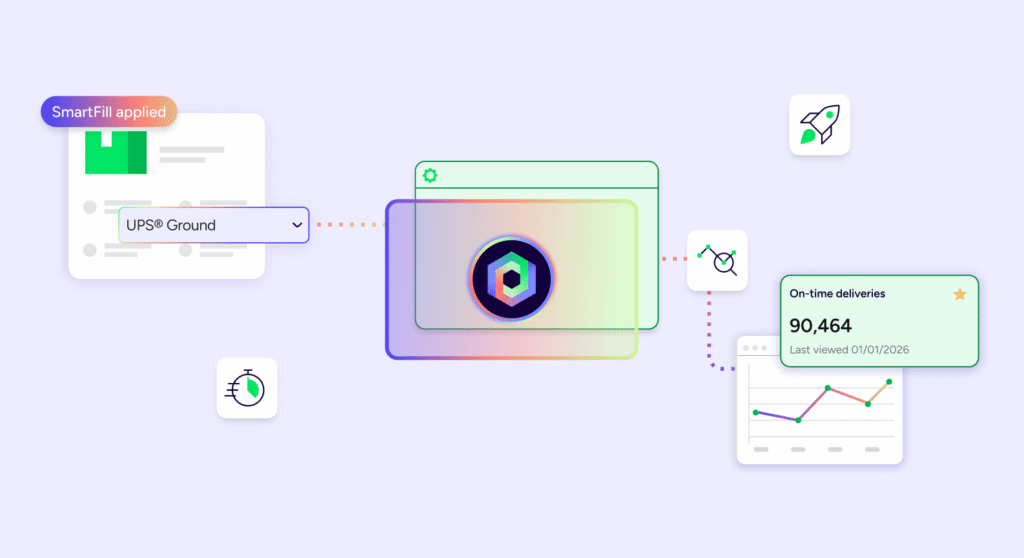
ShipStation automation rules by carrier and weight help you assign the right shipping service before you print. In the platform, you can create rules that read order weight, package size, dimensions, and other order data, then set the carrier, service, or package setting for you. That means fewer clicks, cleaner settings, and faster work for every store order.
The rules work by matching order criteria to an action type. You set the rule once, and it’s applied when imported orders match the settings you chose. A common setup is simple: lighter orders go to USPS®, heavier ones go to UPS®, while other options stay open for review.
You can also add more than weight. Use package size, dimensions, store, tags, or other order data to make the rule more precise. If you already know how certain orders should ship, automation rules set that choice for you before manual work starts.
Create the rule in Account Settings, then Automation, then Automation Rules. Choose Create a Rule, name it, and decide which orders should match. After that, set your criteria and pick the action.
For example, you might create rule logic based on weight: under 1 lb goes to USPS Ground Advantage, while heavier orders move to UPS Ground. If you need more control, add dimensions or another option so oversized packages follow a different path.
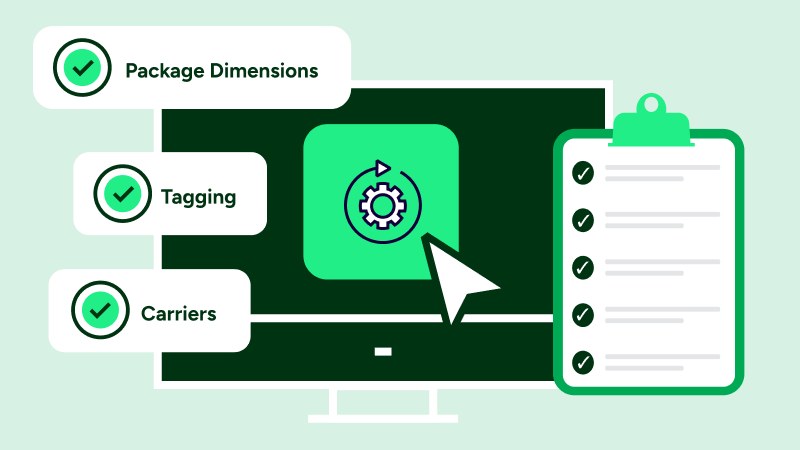
Weight is the start, not the whole picture. Many sellers need to add package tare weight, box dimensions, or store-specific criteria so rates make sense in real packing flow. That extra step helps rules match how your team actually ships.
You can also layer actions. The platform lets you tag orders, set insurance, or flag orders that need review. If an order mixes fulfillment methods, you can create rule logic to tag it for a split instead of sending it down the wrong lane.
Good automation should feel simple. Start with carrier and weight, then add package size, order data, and settings that match your workflow. In the ShipStation platform, you can build rules that cut repeat clicks and keep orders moving. Try ShipStation and see how fast your next rule can go live.