Back
Back




































 Technology & Integrations


If you’re juggling orders in BigCommerce and then copying details over to print labels, you already know how quickly that routine eats into your day. The good news is you don’t have to keep doing it by hand. Once you connect BigCommerce to ShipStation, your orders flow into one place, so you can create labels faster, reduce manual data entry, and keep fulfillment running smoothly as your store grows.
Setup only takes a few minutes, but a couple of details, like who installs the app and which account you link, can make the difference between a smooth start and a frustrating one. Here’s how to do it right the first time.
The simplest way to connect BigCommerce to ShipStation is to follow the install flow in order and use the Store Owner login from the start. That helps avoid a common setup delay. After the app is installed, you’ll link your ShipStation account, review your store settings, and confirm the connection before you start shipping live orders.
That’s the basic setup for BigCommerce and ShipStation. The rest of the work is making sure the right people, the right account, and the right workflow are attached to that connection.
Only the Store Owner account has permission to install apps in BigCommerce. If a staff user is attempting to connect the store first, the setup may stall before you even reach the ShipStation login screen. Starting with the owner account saves time and keeps the install clean.
After the initial setup, the Store Owner can still give other users access inside BigCommerce. If your team needs to open ShipStation through the BigCommerce app area, the owner must grant those permissions under the Single Click App settings on each user profile.
This matters most for growing teams. One person installs the app, but daily work often belongs to support, operations, or warehouse staff. Set access early, and your workflow stays smoother later.
When BigCommerce asks you to approve app access, stop and read the screen. This is the point where you confirm the permissions that are strictly necessary for the integration to work. If the prompt is skipped or rushed, you may need to reconnect later to fix missing access.
Keep this part simple:
After setup, you can usually open ShipStation either directly or from BigCommerce under your apps. That gives your team one place to manage store activity without bouncing between tabs all day.
Each BigCommerce store can connect to only one ShipStation account. That single connection rule is easy to miss, and it matters. Before you click confirm, make sure you’re linking the right store to the right ShipStation login.
This is especially important if your business runs more than one storefront, has separate brands, or uses different staff logins. Pause and verify the account owner, billing owner, and daily shipping team all expect the same setup. A quick check here can save a messy cleanup later.
If you’re attempting to connect and something looks off, don’t keep retrying at random. First, check whether the store was linked before, whether someone on your team has already connected it, or whether you’re working through an older integration path that needs to be migrated.
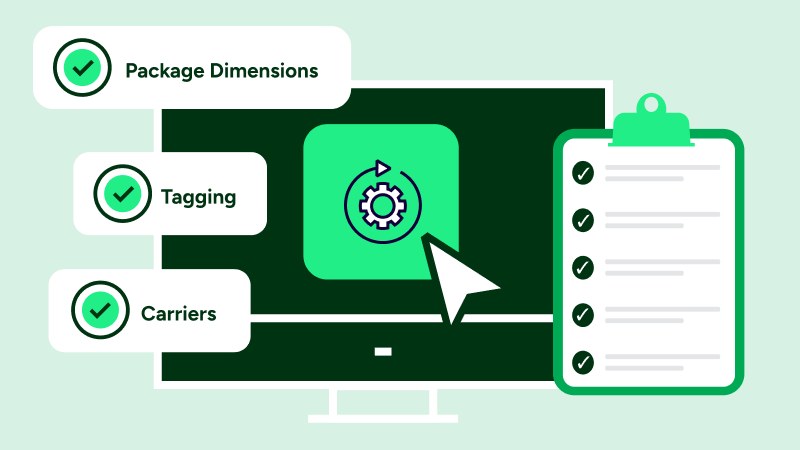
A successful connection is only the first step. Before you rely on it for daily shipping, review the store settings tied to the integration. This is where you confirm that the account behaves as your team expects once orders begin to move.
Look for basics first:
This review helps prevent small mistakes that turn into daily friction. If you skip it, your team may still be able to connect BigCommerce to ShipStation, but the workflow may feel clunky from day one. A few careful minutes here often save hours of cleanup later.
Before you trust the integration with live volume, run a simple order test. The goal is to confirm that the order data coming from BigCommerce matches what your team needs in ShipStation. You’re not looking for perfection. You’re making sure the basics are solid.
Check a sample order and review:
This is also a good time to confirm how you want to send tracking updates and how your team will handle exceptions. If you sell bundles, kits, or products with special handling, test those too. Even one order with custom packing needs can show you where to tighten the process before volume ramps up.
Connecting the store is the start. Automation rules are what turn that connection into real time and money savings. Once orders land in ShipStation, rules can sort work, tag exceptions, and reduce repetitive clicks that slow your team down.
That matters when order fulfillment starts to spike.
Useful automation ideas include:
If you manage products fulfilled in different ways, automation rules can also flag orders that need to be split. For example, one line item may ship from your team, while another goes through an outside partner. That kind of order workflow is much easier to spot when rules do the sorting first.
We spent about 10 minutes to prepare each plant order, and now with automations, we’ve got it down to 3.4 minutes.
Once your orders import cleanly, the next win is speed. ShipStation gives teams a better way to create shipping labels without having to handle each order individually. That reduces data entry, lowers the risk of errors, and helps warehouse work move at a steadier pace.
Batch printing is especially useful when your BigCommerce storefront gets busy during sales, launches, or holiday peaks. Instead of jumping across multiple screens, your team can work from one queue, review labels in sequence, and keep packing work moving.
This is where BigCommerce and ShipStation start to feel less like two separate tools and more like one connected system. Orders come in, labels get created, and your staff spends less time on repetitive admin work and more time getting packages out the door.
A major benefit of connecting BigCommerce to ShipStation is control. Instead of piecing together shipping tasks across separate tools, ShipStation helps you run more of your workflow from one place. That becomes more valuable as your business adds volume, staff, carriers, or sales channels.
ShipStation supports a wide range of store, marketplace, and global carrier integrations. For a multi-channel brand, that means your BigCommerce store does not have to live in isolation.
As your process matures, you can keep order fulfillment moving with features like automation, branded tracking pages, and a branded returns portal. That makes the connection more than a setup task. It becomes part of a cleaner customer experience, with less back-and-forth for your team and fewer handoffs across disconnected systems.
When you connect BigCommerce to ShipStation, the goal isn’t only to finish setup. The real win is a simpler workflow for shipping labels, order fulfillment, tracking, and returns. Start with the Store Owner account, confirm the right permissions, test a real order, and then build from there.
If you’re ready to simplify shipping, start a free trial and put the connection to work.