 Back




































Integrate Amazon With Your Shipping Software
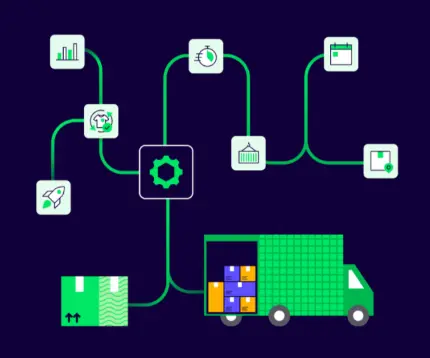
Build a faster, smarter fulfillment engine for every Amazon order you ship. The ShipStation Amazon workflow brings marketplace orders into one place, helps you save time with automation, compare shipping services, and keep labels, tracking, and multi-channel fulfillment organized.
Key integration features
- Import Amazon orders automatically
- Organize each Amazon Order Source
- Compare carrier shipping services
- Apply store-specific automation rules
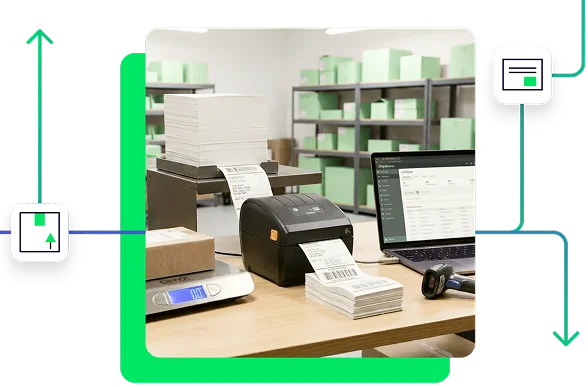
- Print labels in bulk
About
Amazon is an ecommerce marketplace and retail company where shoppers browse departments, buy physical products, manage orders, and handle returns. For online sellers, it offers major reach and strong demand, but it also brings tight order fulfillment expectations.
Instead of adding more software for Amazon and every other channel one by one, ShipStation brings your Amazon orders into the same shipping tool you use for other ecommerce platforms and sales channels. Your team gets one place to sort work, print labels, review tracking, and keep orders moving without the usual copy-and-paste routine.
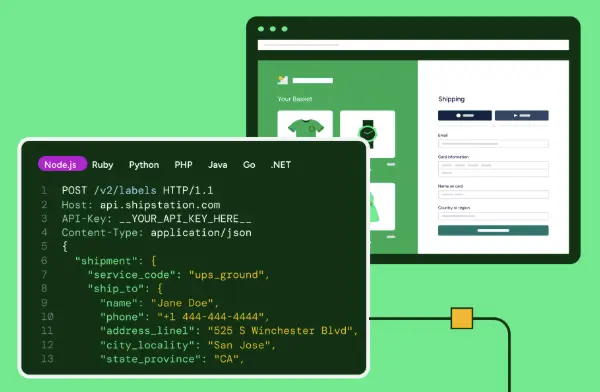
For retailers integrating with Amazon as part of a bigger business, that control matters. ShipStation helps businesses shipping across platforms and marketplaces save time with filters, automation, and carrier choice, while keeping each Amazon Order Source clear in its own store view. If you're thinking about developing Amazon integration code or building a custom API integration, this route is much simpler for daily operations.
Why Amazon users choose ShipStation

Unite platforms and marketplaces

Keep order sources clean

Handle growth without rework

Ship through peak with confidence
Move beyond basic shipping tools with ShipStation

Order Management

Inventory Management

Rate Comparison

Fulfillment Automation

Buy and Print Labels

Returns and Exchanges
STEP 1
Go to Account Settings and open Selling Channels > Store Setup from the sidebar. That’s where you start the Amazon store connection inside ShipStation before choosing your country account details.
STEP 2
Click Connect a Store or Marketplace, select Amazon, and choose the Amazon Order Source for the Amazon country account you want to connect.
STEP 3
Choose your Product Identifier—SKU or ASIN—then click Connect and sign in to your Amazon account to continue the authorization process.
STEP 4
Check the authorization box, click Confirm, and review store-specific settings like branding, notification preferences, and product handling. If you use multiple Amazon Order Sources, repeat the process for each one.
Find the best rate for every shipment
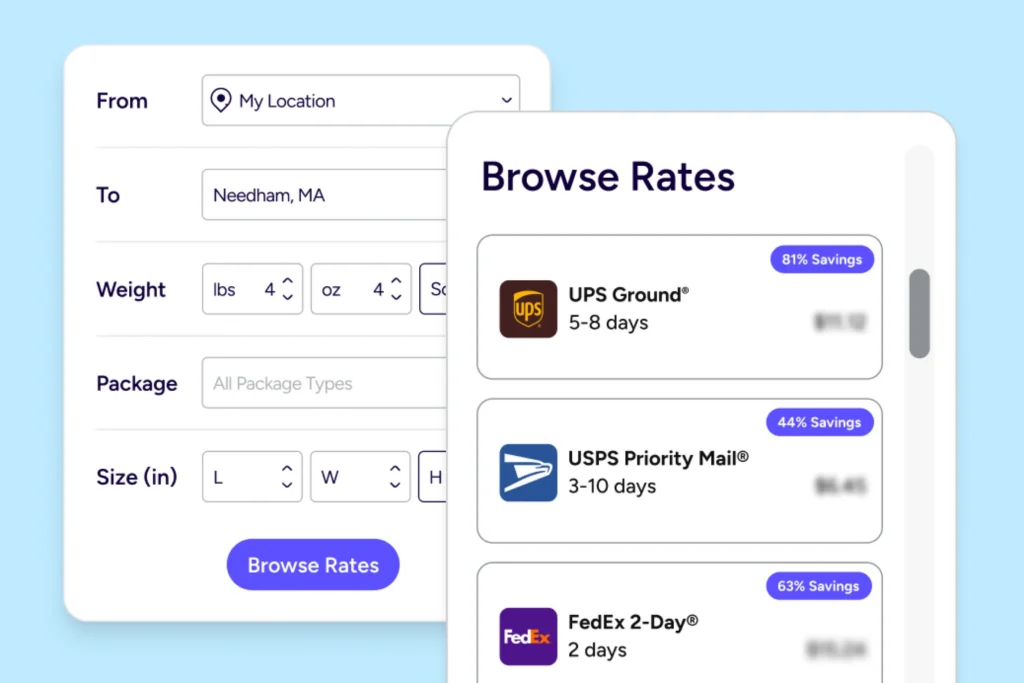
Compare rates, delivery speeds, and services side-by-side for every order that comes in from Shopify, and let ShipStation pick the best option—with up to 90% discounted rates across 200+ carriers.
ShipStation AI
Next-gen shipping intelligence
- SmartFill
- Automated Order Creation
- Universal AI Connect (MCP)
- Batch Label Processing
- Auto-PRO Retrieval
- Dynamic Spot-Pricing Engine
- Packing Recommendations
- 24/7 Always-On
Sign up for a free trial. No credit card required.
FAQ
ShipStation Amazon FAQ for orders, labels, tracking, and setup
What is the ShipStation Amazon integration?
The ShipStation Amazon integration connects your Amazon marketplace store to ShipStation so your orders flow into the same fulfillment workspace as your other channels. Instead of switching between separate tools, your team can manage labels, shipping services, filters, tracking views, and day-to-day order fulfillment from one command center. That makes it easier for online sellers to stay organized, save time, and keep work moving when order volume rises. This setup is about Amazon marketplace orders, while Amazon Shipping, Amazon Buy Shipping, Fulfillment by Amazon, and Amazon Multi-Channel Fulfillment are separate workflows with their own setup paths.
Can I manage Amazon and other sales channels in one workflow?
Yes. ShipStation is built for businesses shipping across multiple sales channels, so Amazon doesn’t have to live in its own silo. With 200+ store and marketplace integrations plus 200+ carrier integrations, ShipStation gives you one workflow for orders, labels, filters, and carrier selection across the rest of your business too. That matters when you sell through several ecommerce platforms and marketplaces and don’t want your team bouncing between tabs all day. It also means you can bring more structure to order fulfillment without building custom software around Amazon for every new channel you add.
How do I connect my Amazon store to ShipStation?
The setup is straightforward and doesn’t require you to start developing Amazon integration code or a separate API integration for normal marketplace use. Follow this path inside ShipStation:
- Go to Account Settings
- Open Selling Channels > Store Setup
- Click Connect a Store or Marketplace
- Select Amazon
- Choose your Amazon Order Source
- Choose SKU or ASIN as your Product Identifier
- Click Connect, sign in to Amazon, check the authorization box, and click Confirm
After that, you can review store-specific settings like branding, notification preferences, and product handling.
Can I connect more than one Amazon Order Source to ShipStation?
Yes. If your Amazon account has multiple Amazon Order Sources, you repeat the connection process for each one you want to see in ShipStation. Orders then import into their appropriate stores, which gives your team cleaner store views and better control over filters, fulfillment steps, and workflow rules. That separation is useful when you want to keep country accounts or operating workflows distinct while still managing everything inside one shipping tool. **Tip:** Name each connected store clearly so your staff can sort queues faster during busy periods.
Do Amazon buyers need a phone number from ShipStation to track an order?
No. ShipStation isn’t the customer support phone line for Amazon orders. Inside ShipStation, your team keeps shipment status and tracking details organized in the same workflow used for labels and fulfillment, and ShipStation also supports branded tracking pages and shipping notifications after orders go out. That gives your staff one place to monitor movement without hunting through separate systems. For the buyer, the important part is the tracking tied to the shipment—not a separate ShipStation phone number.
Is Amazon Shipping the same as the Amazon marketplace integration in ShipStation?
No. They’re separate connections inside ShipStation and they solve different jobs. The Amazon marketplace connection lives under Selling Channels > Store Setup and is for importing Amazon store orders. Amazon Shipping lives under Shipping > Carriers and is a domestic carrier service connection, and Amazon Buy Shipping is also separate. If you came here looking for Amazon shipping services, that setup exists—but it isn’t the same as connecting your Amazon store for marketplace order management.
Can I create return labels for Amazon orders in ShipStation?
Yes. Return labels are supported for eligible Amazon orders, but the order must be merchant-fulfilled and it must contain a physical product. Amazon-fulfilled orders can still import into ShipStation, but they import as Shipped orders, so they do not follow the same hands-on fulfillment flow as merchant-fulfilled orders. That distinction is important if your team handles returns, exchanges, or post-purchase support inside the same workspace. **Tip:** Before setting return rules, check whether the order is merchant-fulfilled and whether the item is a physical product.