Back









































Marketplaces
Integrate OnBuy With Your Shipping Software
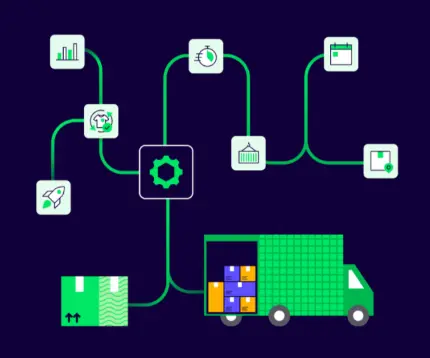
Build a bigger marketplace business with less shipping drag. The ShipStation OnBuy connection brings orders into one workflow, helps you create labels faster, push tracking updates back to OnBuy, and keep customer notifications on track.
Key integration features
- Import OnBuy orders
- Update order tracking
- Use requested services
- Apply batch printing
- Connect carrier accounts
About
OnBuy is a British-born online marketplace and sales platform for sellers who want wider reach. It's known for helping merchants sell products through a marketplace built for shoppers and sellers.
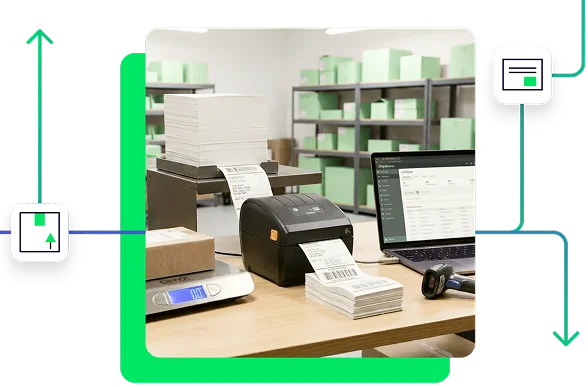
Connect OnBuy to ShipStation and bring marketplace orders into the same shipping workflow as your other channels. ShipStation imports orders from OnBuy and updates those orders with tracking information when a label is created. Your team gets one place to print labels, use batch printing, apply automation rules, and manage shipping across 200+ store and marketplace integrations. That means less manual work, stronger post-purchase visibility, and more control as your OnBuy business grows.
Why OnBuy users choose ShipStation

Add OnBuy without extra admin

Keep buyers informed

Scale with proven volume
Expand with confidence
Move beyond basic shipping tools with ShipStation

Order Management

Inventory Management

Rate Comparison

Fulfillment Automation

Buy and Print Labels

Returns and Exchanges
STEP 1
Log in to your OnBuy Seller Control Panel, open **Listings & Products > Imports & Integrations**, click the **ShipStation** tile, and copy your Live Consumer Key and Secret Key.
STEP 2
Go back to **Imports & Integrations**, click the **OnBuy** tile, and note your **Site ID**. Use only the Site ID number, not the full text label.
STEP 3
In ShipStation, go to **Account Settings > Selling Channels > Store Setup**, click **Connect a Store or Marketplace**, choose **OnBuy**, enter your Site ID, Client Key, and Secret Key, then click **Connect**.
Find the best rate for every shipment
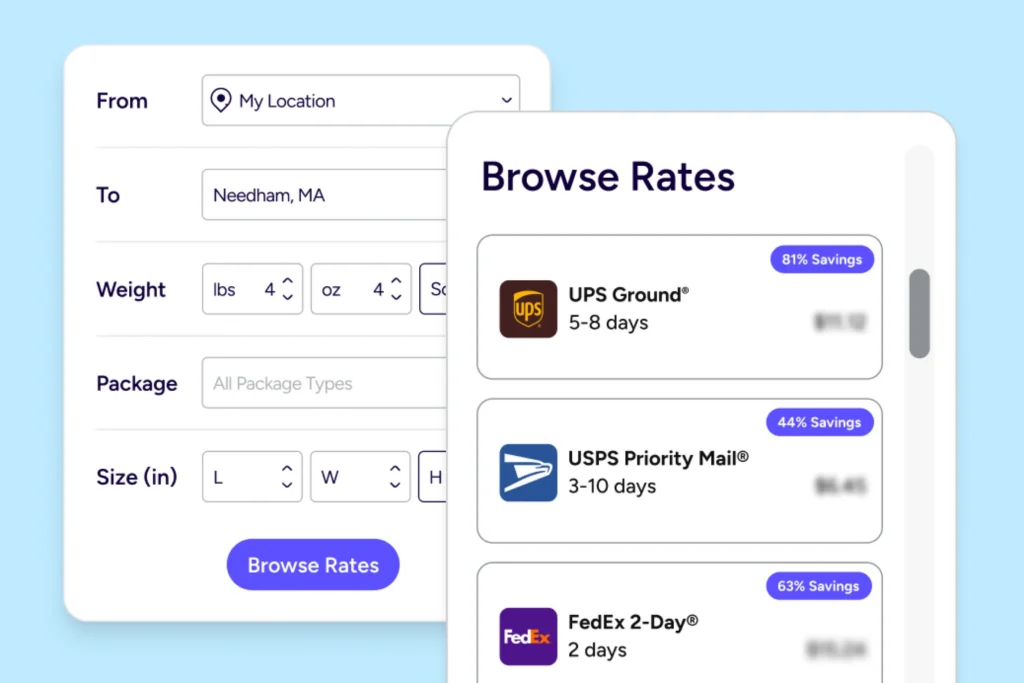
Compare rates, delivery speeds, and services side-by-side for every order that comes in from Shopify, and let ShipStation pick the best option—with up to 90% discounted rates across 200+ carriers.
ShipStation AI
Next-gen shipping intelligence
- SmartFill
- Automated Order Creation
- Universal AI Connect (MCP)
- Batch Label Processing
- Auto-PRO Retrieval
- Dynamic Spot-Pricing Engine
- Packing Recommendations
- 24/7 Always-On
Sign up for a free trial. No credit card required.
FAQ
ShipStation OnBuy FAQ for setup, orders, and tracking
Does ShipStation connect directly to OnBuy?
Yes. ShipStation integrates with OnBuy to import orders from your store and update those orders with tracking information when a label is created.
What do I need before connecting OnBuy?
You need an active OnBuy account, your OnBuy Site ID, and your Client Key and Secret Key. For order import, the order must include a Ship To address.
How do I connect OnBuy to ShipStation?
Follow these steps:
- Copy your Live Consumer Key and Secret Key from **Listings & Products > Imports & Integrations > ShipStation**
- Copy your **Site ID** from the **OnBuy** tile on the same page
- In ShipStation, go to **Account Settings > Selling Channels > Store Setup**, choose **OnBuy**, enter those details, and click **Connect**
Can I manage OnBuy orders with other sales channels in ShipStation?
Yes. ShipStation supports 200+ store and marketplace integrations, so OnBuy can sit alongside your other order sources in one shipping workflow.
How does tracking work for OnBuy orders in ShipStation?
When you create a label, ShipStation updates the OnBuy order with tracking information. ShipStation also supports customer emails, so your post-purchase communication stays on track.
Related integrations
Acenda
Open the door to bigger marketplace growth. Pair Acenda with ShipStation to turn rising order volume into organized…
Alibaba
Unlock a stronger wholesale fulfillment engine for your business. Pair the Alibaba B2B marketplace with ShipStation to import…
Amazon
Porta i tuoi ordini Amazon in un unico flusso di lavoro. Stampa le etichette, confronta i servizi di…