Back









































Apps & Tools
Integrate Sellbrite With Your Shipping Software
Build a stronger multichannel operation with Sellbrite and ShipStation. Connect Sellbrite to ShipStation to pull orders into one streamlined fulfillment flow, compare carrier options, automate label creation, and send shipment details back to Sellbrite so your team ships with less busywork and more control.
Key integration features
- Import Sellbrite orders automatically
- Compare carrier rates faster
- Send tracking back to Sellbrite
- Pull notes and item options
- Automate labels with batch printing
About
Sellbrite is multi-channel ecommerce software for brands and retailers. It helps you list products across sales channels, manage listings, sync inventory, and handle orders from one interface.
When Sellbrite orders move into ShipStation, your team gets a cleaner shipping workflow with more detail at every step. ShipStation imports customer emails, phone numbers, requested shipping methods, buyer notes, internal notes, order weight, item weights, item options, item images, product stock locations, and Deliver By Date data. That means less rekeying, fewer missed details, and better visibility at the packing station.
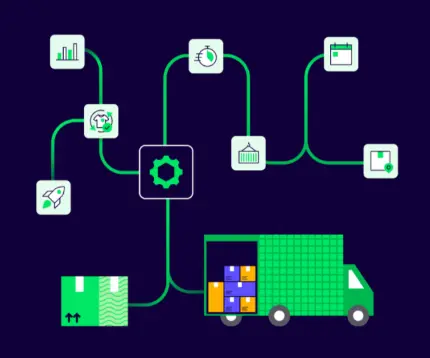
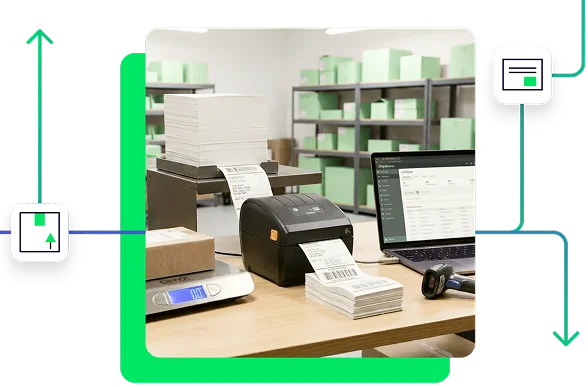
ShipStation then takes over the part that decides how fast you scale: shipping execution. Use batch printing, automation rules, and Rate Shopper to cut manual work and move orders out with more consistency. ShipStation supports over 1 million businesses, connects to 200+ store and marketplace integrations and 200+ global carriers, and gives you access to discounted carrier rates. After you ship, ShipStation sends status updates, tracking numbers, carrier, service, and item information back to Sellbrite to keep the post-purchase experience aligned.
Why Sellbrite users choose ShipStation
Move beyond basic shipping tools with ShipStation
STEP 1
Log in to your Sellbrite account, open the Settings page from the gear icon in the top-right corner, click App Store in the left menu, and choose ShipStation.
STEP 2
Click the Generate Authorization button in Sellbrite to create the Username and Password you’ll use to authorize the connection inside ShipStation.
STEP 3
Open ShipStation in a new tab or browser window, go to Account Settings, and select Selling Channels > Store Setup from the sidebar. Then click Connect a Store or Marketplace and select Sellbrite.
STEP 4
Enter the generated Username and Password, click Test Connection, and then click Connect if the test is successful. Then adjust store settings like branding and customer notifications, or click Save to finish.
TESTIMONIAL
Find the best rate for every shipment
Compare rates, delivery speeds, and services side-by-side for every order that comes in from Shopify, and let ShipStation pick the best option—with up to 90% discounted rates across 200+ carriers.
ShipStation AI
Next-gen shipping intelligence
- SmartFill
- Automated Order Creation
- Universal AI Connect (MCP)
- Batch Label Processing
- Auto-PRO Retrieval
- Dynamic Spot-Pricing Engine
- Packing Recommendations
- 24/7 Always-On
Sign up for a free trial. No credit card required.
FAQ
Sellbrite and ShipStation FAQ for setup, tracking, inventory, and returns
What does Sellbrite do in a ShipStation workflow?
Sellbrite handles the multichannel side of the job. It helps brands and retailers manage listings, inventory, and orders across channels from one interface. ShipStation picks up from there by turning those orders into a faster fulfillment workflow with label creation, automation, rate comparison, tracking, and returns.
Do I need anything before connecting Sellbrite to ShipStation?
Yes. You need an active Sellbrite account and the Username and Password generated inside Sellbrite for ShipStation authorization. For orders to import, they also need a Ship To address. Once those pieces are ready, you can connect the store and start pulling orders into ShipStation.
How do I connect Sellbrite to ShipStation?
The setup follows a short flow.
- Log in to Sellbrite, go to Settings, click App Store, choose ShipStation, and generate your authorization Username and Password
- Log in to ShipStation and go to Account Settings
- Select Selling Channels > Store Setup, then click Connect a Store or Marketplace
- Choose Sellbrite, enter the generated Username and Password, click Test Connection, and then click Connect
After the connection is complete, the store settings page opens so you can adjust branding and customer notifications or save and close.
Does ShipStation send tracking information back to Sellbrite?
Yes. ShipStation sends Sellbrite the shipment status update, tracking number, carrier, service, and item information. That cuts out manual copy-paste and helps keep your post-purchase updates consistent across the order record. Carrier fee isn’t sent back with the shipment notification.
Does ShipStation import item options, notes, and weights from Sellbrite?
Yes. ShipStation imports item options, internal notes, notes from the buyer, total order weight, and item weights from Sellbrite. It also imports item images, customer email addresses, customer phone numbers, requested shipping methods, product stock locations, and Deliver By Date data. Your team gets the order context it needs without rebuilding it by hand.
Can I manage returns for Sellbrite orders in ShipStation?
Yes. Once Sellbrite orders are in ShipStation, you can use ShipStation returns tools as part of the same fulfillment workflow. That gives you one place to manage outbound shipping, tracking, and post-purchase service instead of splitting work across disconnected tools. It also makes it easier to create a smoother customer experience after delivery.
Why use ShipStation if Sellbrite already manages orders?
Here’s the bottom line: Sellbrite helps you organize selling, while ShipStation helps you ship at scale. ShipStation adds batch printing, automation rules, Rate Shopper, branded tracking, and returns tools that go far beyond basic fulfillment steps. Automation cuts clicks per order, helps teams create more labels per hour, and reduces shipping errors. That’s the payoff of pairing Sellbrite with a shipping workflow built for growth.
Related integrations
Acumatica
Build a stronger fulfillment engine for your business with the ShipStation Acumatica integration. Pair Acumatica with ShipStation to…
AIMS360
Turn fulfillment into a growth engine for your AIMS360 business. Pair AIMS360 with ShipStation to organize shipping around…
AmeriCommerce
Unlock a faster, more scalable fulfillment engine for your AmeriCommerce business. Connect AmeriCommerce to ShipStation to bring orders…