Back
Back




































 Technology & Integrations


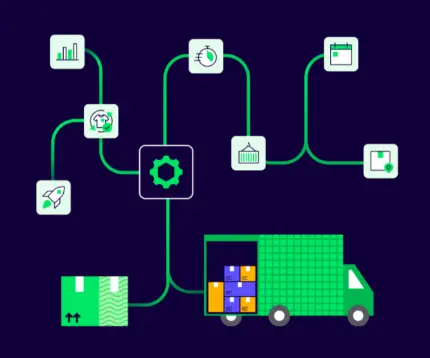
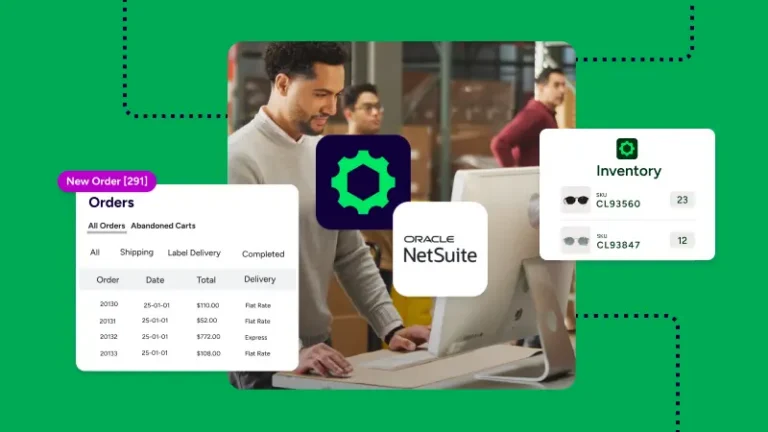
How ShipStation connects to NetSuite to automate order fulfillment comes down to one direct connection, one clean order flow, and less manual work. With ShipStation, you can connect NetSuite through OAuth 2.0, import approved sales orders, choose carriers, print labels, and send tracking data back without copying shipment details by hand.
The core sync is simple. NetSuite sends eligible sales orders into ShipStation, then ShipStation handles label creation, carrier selection, and fulfillment tracking information. Once you ship, tracking numbers and shipment updates sync back so your team is not stuck re-entering data.
Orders need a Ship-To address to import. Orders in Pending Approval do not import. That keeps your order management flow focused on orders that are ready to move.
ShipStation gives you four NetSuite workflow options, so you can match the sync to the way your company ships. Most businesses start with Sales Order, but wholesale teams and warehouse-heavy teams may need something more specific.
You can choose:
You can also add one order filter in NetSuite to control which orders sync. Filters can limit imports by location, class, or department.
Custom field mapping helps you keep useful NetSuite data attached to each order inside ShipStation. The native integration supports up to three extra fields mapped into custom fields 1, 2, or 3, which helps teams copy over the details they actually use.
That can include standard values or custom body fields, such as customer email, order number, location, order date, total, memo, priority, sales approval fields, returns reason, or ship method. If your team sorts work by custom fields, this setup helps automate nearly every step after import.
Once orders land in ShipStation, you can use automation rules to assign a carrier, apply service presets, and reduce manual clicks. Our platform also helps you compare UPS®, USPS®, FedEx®, and DHL Express rates on one screen, which can help lower shipping costs while speeding up label creation.
The same workflow supports branded tracking, returns, and international shipping. You can send tracking numbers back to NetSuite, keep customer updates moving, and ship to 250 countries and territories. If you sell across multiple selling channels, this keeps fulfillment in one shipping software workflow instead of several disconnected tools.
Setup is direct, but a few requirements come first. A NetSuite admin needs to enable SuiteCloud Client and Server SuiteScript, and the role used for access must allow OAuth 2.0 access tokens.
Then the connection step looks like this:
If you need help, ShipStation support can guide the setup so your sync, data, and shipment flow start clean.
A strong NetSuite connection should do more than move orders. It should cut manual work, keep data clean, and help you ship with fewer steps. ShipStation brings sales orders, carriers, tracking, returns, and automation into one place, so your team can move faster. Start a free trial and see how the connection fits your fulfillment process.